Getting started
Start using Fervio with GitHub
Read steps 1 to 5 in order and you will have your first map in about ten minutes. Steps 6 to 9 cover organizations, other people, what to do when something is missing, and leaving. Linear works almost the same way, and the differences are noted where they matter.
Before you start
- A GitHub account, and a repository whose issues you want on the map.
- That is all. No Project, no field setup. Fervio builds the backbone out of labels.
- For a repository owned by an organization, the organization owner installs Fervio. Step 6 covers that.
1. Sign in
Open fervio.co/app and choose GitHub. The GitHub install screen appears once, then you land back in Fervio.
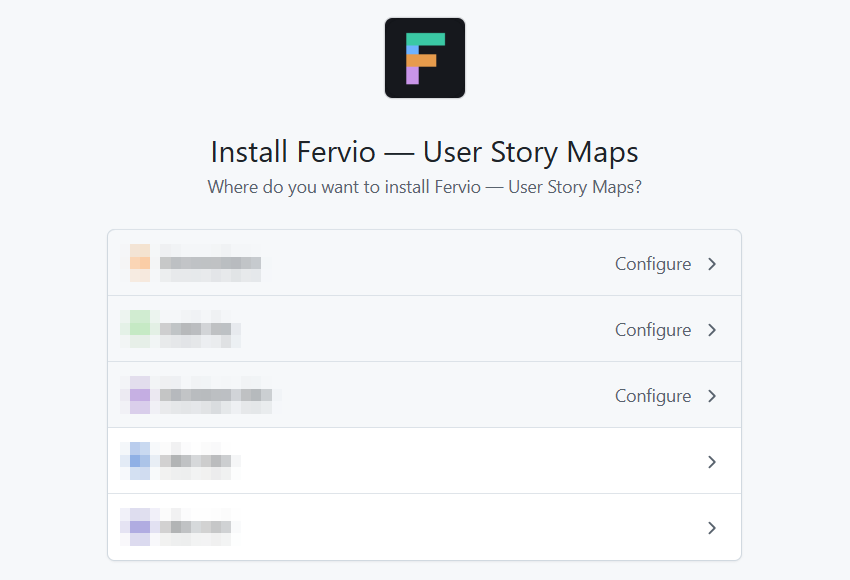
The same screen is where you choose which repositories to share. All of them, or one. Repositories you leave out stay invisible to Fervio. You can add more later.
The permissions are fixed on the GitHub App and listed on the permissions page. However you sign in, the permissions are the same four. Only the repository list changes.
2. Check the connection
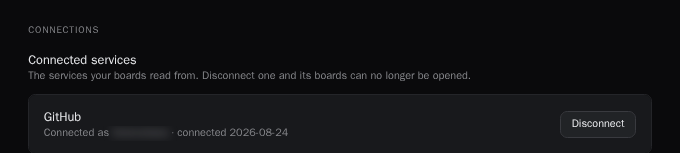
Signing in lands you on the space list. Open settings from the menu under your name and confirm the connection is listed. GitHub and Linear are separate products, with separate accounts.
3. Create your first map
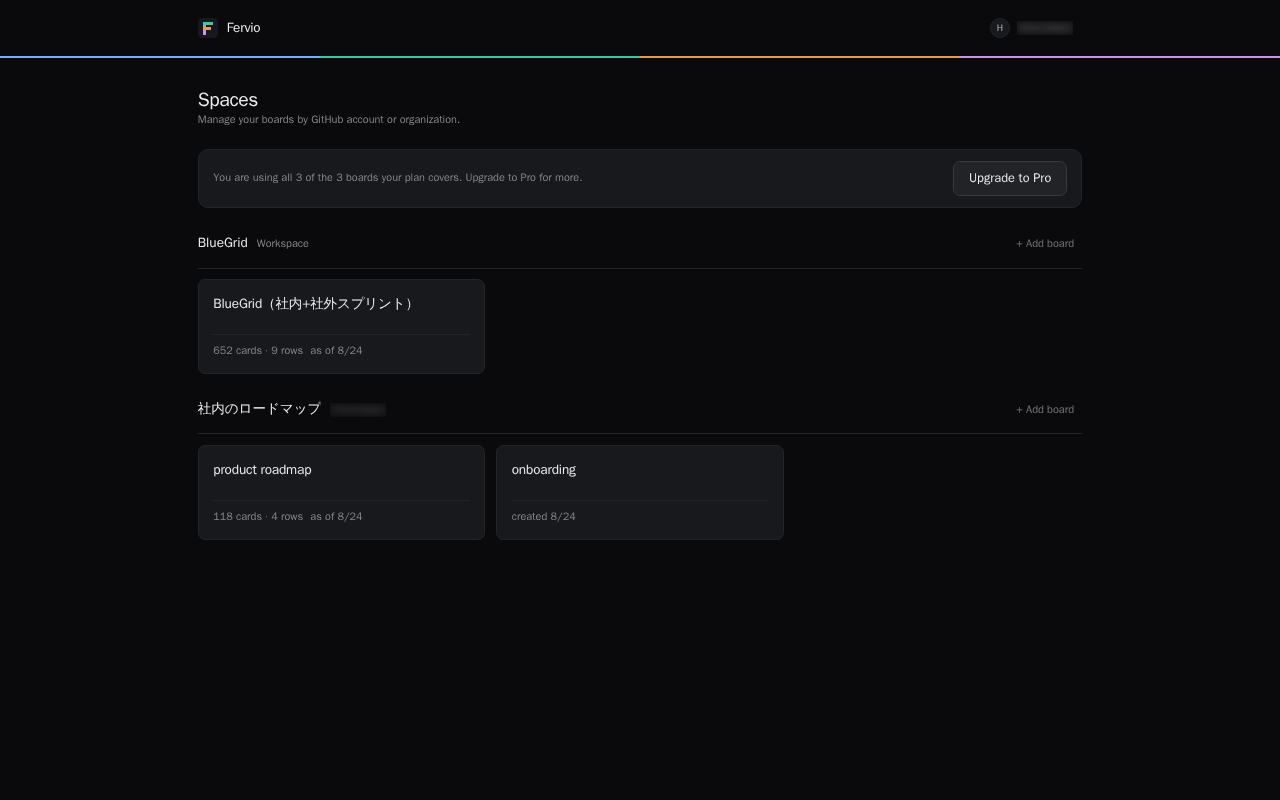
A space holds the maps for one connected account. A map lays out the issues from the repositories you pick. Start from “+ Add board” in the space heading.
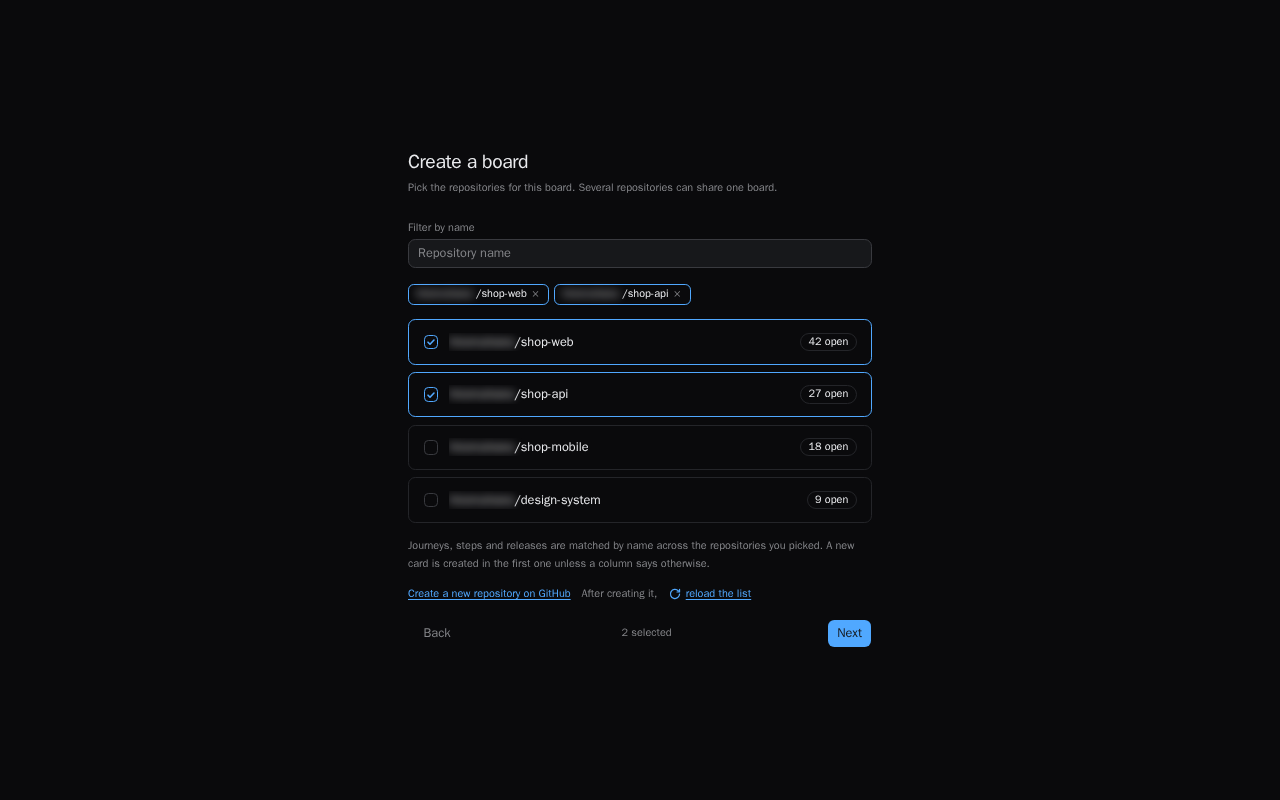
The wizard asks in this order.
- Personal or organization. Where the repositories live.
- Which repositories to read. Pick more than one if you like. Their issues land on a single map.
- A name. One is filled in already. Change it only if you want to.
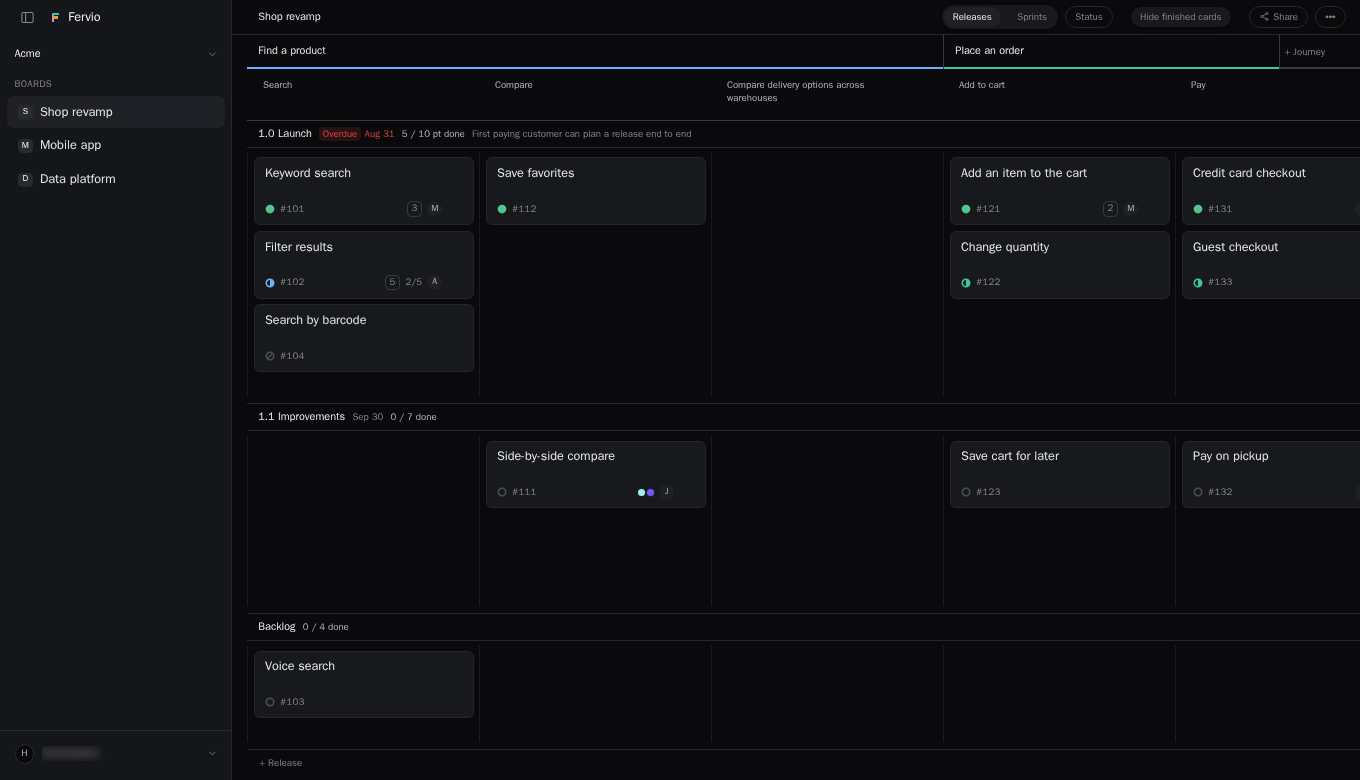
Open the board and every open issue in those repositories is already on it. Closed issues show up only if they carry a Fervio label. Anything you have not sorted yet sits in the unassigned column.
4. Labels hold the backbone
A story map is a backbone across the top and cards underneath. Fervio keeps that backbone on the issues themselves, as labels.
fervio-journey/— the bands across the top. The coarse arc of the story.fervio-step/— the columns beneath a band.fervio-estimate/— the estimate on a card, read as a number.
Fervio creates them. You never make them by hand. The prefix keeps them apart from the labels you already use.
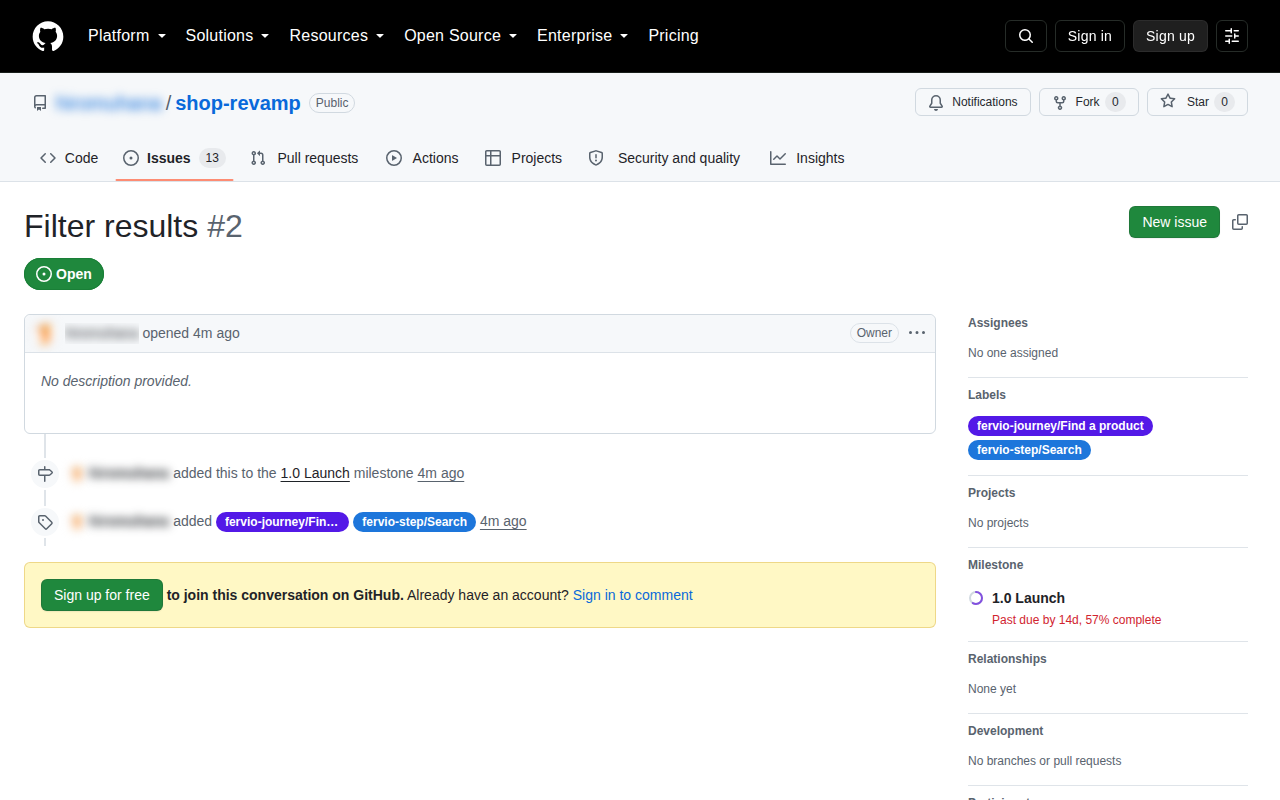
Rename one of these labels in GitHub and the backbone disappears in Fervio. It matches on the name. Only the column order has nowhere to live in GitHub, so Fervio keeps that part.
A card's state is whether the issue is open or closed. Closed issues stay on the map only while they carry a step label, so finished stories keep their place.
On Linear the same two levels come from initiatives and projects, so there is nothing to create.
5. Milestones make the release rows
The bands that cut across the map are the releases you are shipping. Fervio reads them from GitHub, so you create them there, on the Issues tab of the repository.
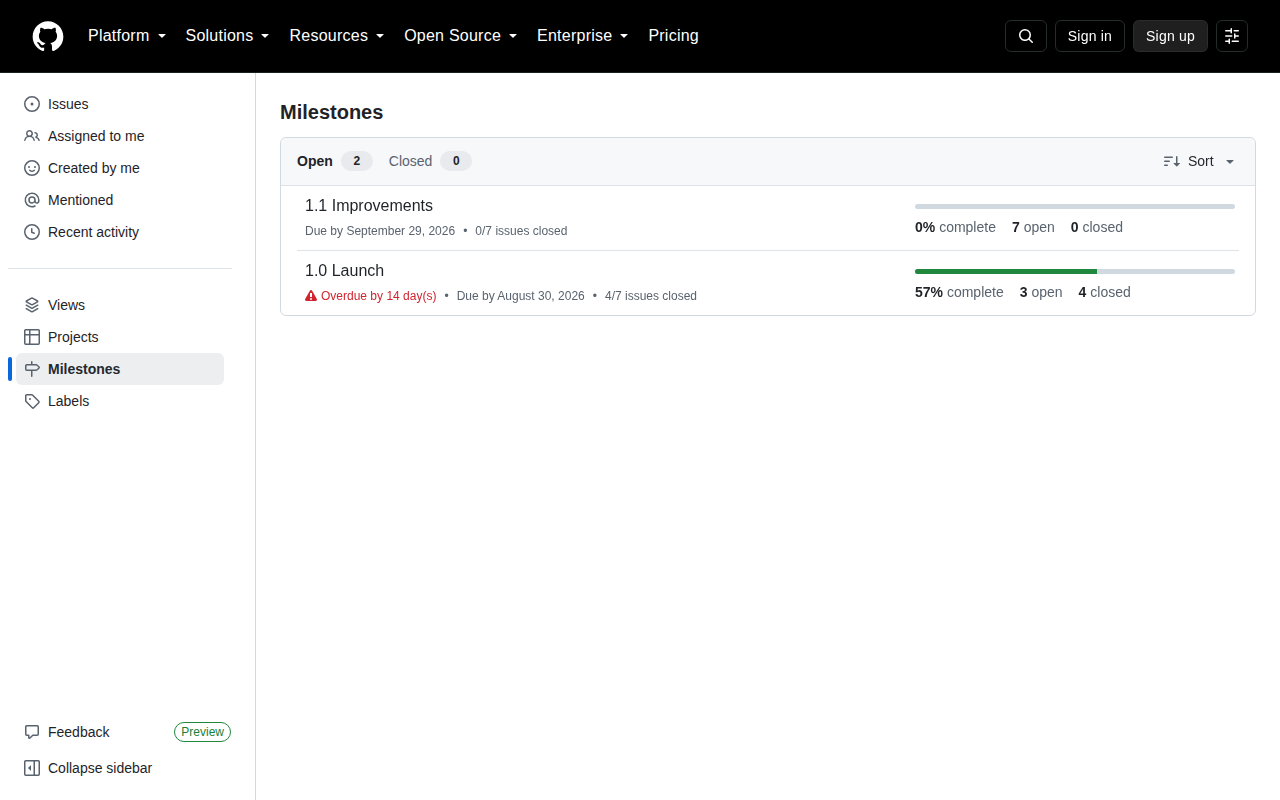
Fervio reads them and moves cards between them. It never deletes one. Milestones are yours. Fervio creates one in exactly two cases: when you press “+ Release” on the map, and when a map reads several repositories and you drag a card into a release row its own repository does not have yet. Fervio then creates the same milestone there, so the row means the same thing in every repository.
6. Using an organization's repositories
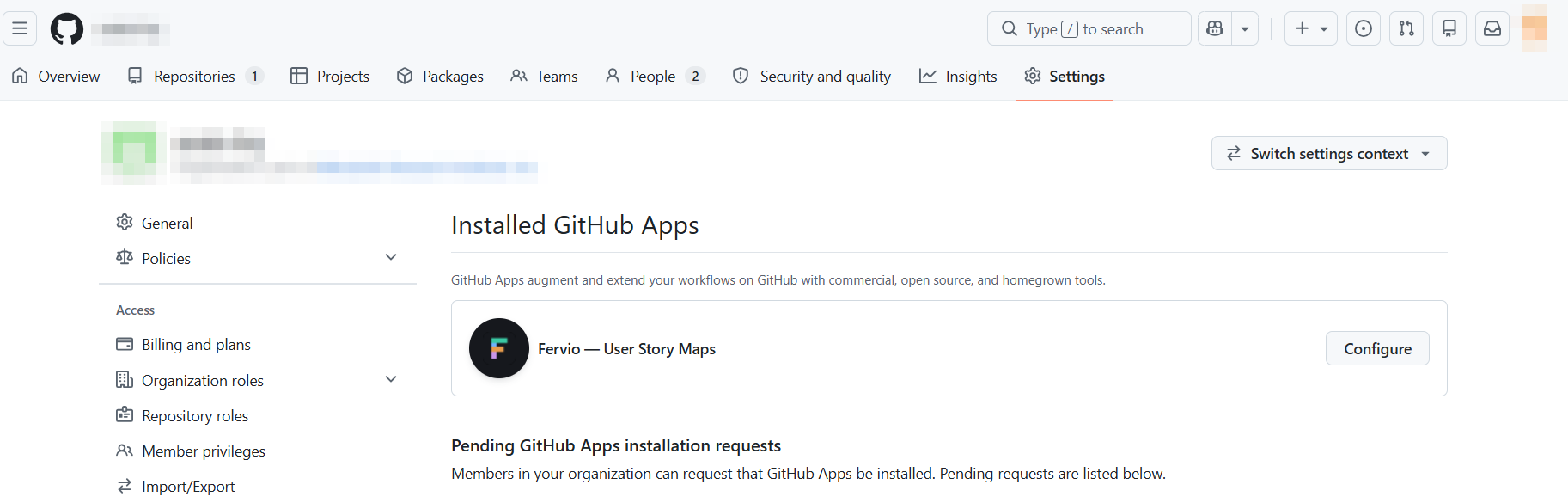
This is where people get stuck. Only an organization owner can share the organization's repositories. If you are not one, the install screen lets you send a request.
- In GitHub, open the organization's Settings → GitHub Apps.
- Install Fervio and pick the repositories to share.
- Back in Fervio, reload the map list and the repositories appear.
7. Bringing other people in
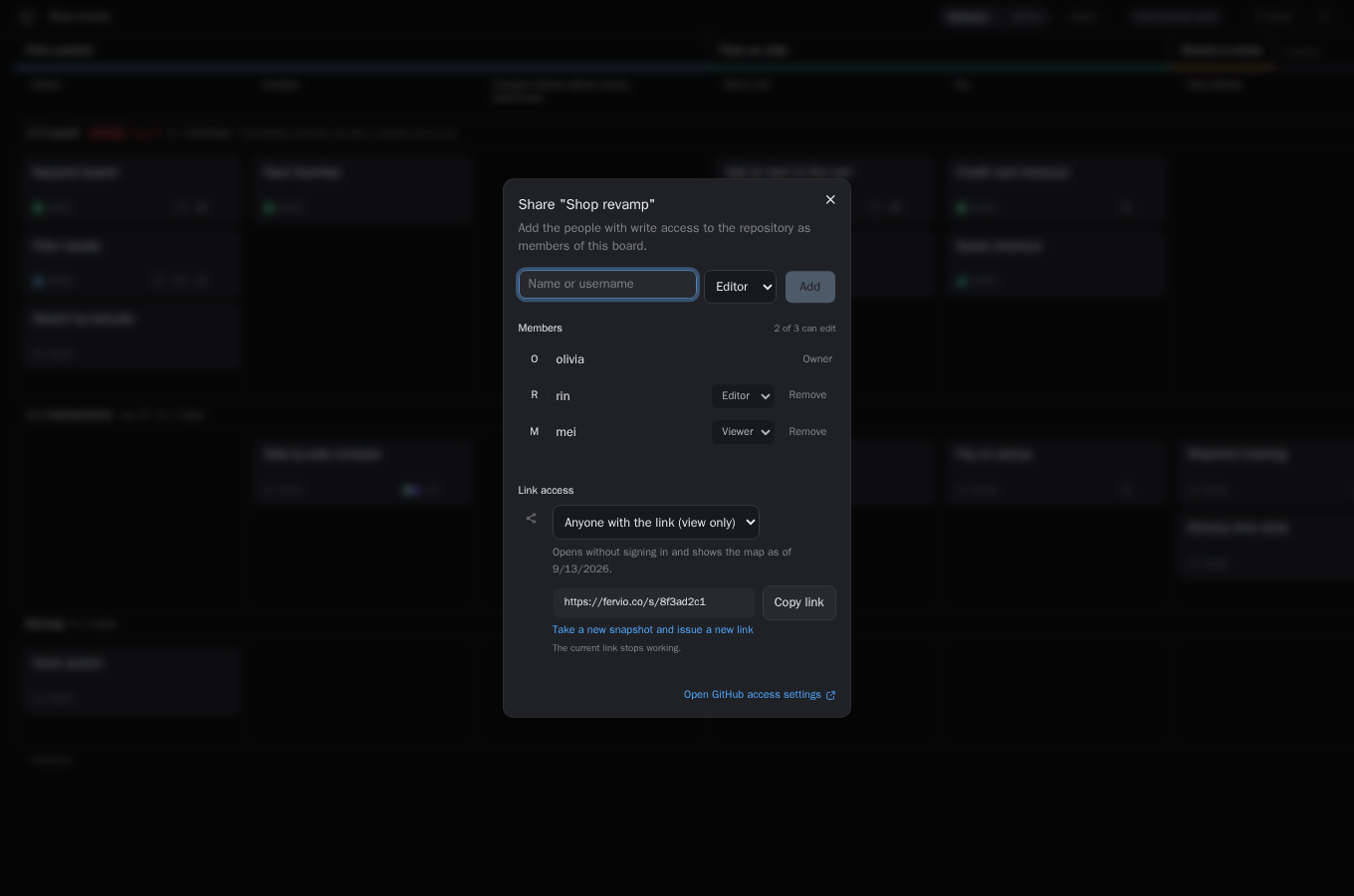
Open the board, press Share, and add people there. Only the board's owner can add someone, change a role, or remove anyone. A board opens only for someone who has all three of these.
- They can see the repository on GitHub.
- They have a Fervio account. Signing in with GitHub creates one.
- They are on that board's member list.
Fervio sends no notification, so send them the board link yourself. Every board keeps its own member list, so adding someone gives access to that board and no other. You choose whether they come in as an editor or a viewer. Editing also needs write access to the issues on GitHub, and the free plan caps how many people can edit one board.
Remove someone from the same list and they lose access at once. Their other boards and their access on GitHub are untouched. If GitHub takes that access away instead, the board closes the next time they load it.
For anyone without a GitHub account, open Share and set Link access to “Anyone with the link (view only)”. Whoever holds that URL opens a snapshot of the map without signing in. Treat the URL itself as the password. Links expire after 90 days, and the board's owner can revoke every link at once.
8. When something is missing
| What you see | Why | What to do |
|---|---|---|
| A repository is not in the list | It was not shared with Fervio. | Add it in Fervio's GitHub settings. For an organization, see step 6. |
| An organization is not in the list | Fervio is not installed there yet. | See step 6. It stays hidden until an owner installs it. |
| There are issues, but the map is empty | Every issue in that repository is closed. | Open issues appear. Closed ones stay only while they carry a step label. |
| A column vanished | A fervio-step/ label was renamed in GitHub. |
Restore the label name, or rebuild the column in Fervio. |
| No release rows | The repository has no milestones. | Create them on the Issues tab (step 5). |
| Cards move but nothing saves | GitHub gives you read access, not write access to issues. | Ask for write access to the repository. Fervio mirrors GitHub and cannot grant more. |
| Everything is read-only | You are over the free plan's map limit. | Choose which maps stay editable in settings, or move to the paid plan. Nothing is deleted. |
| A Linear map will not open | It belongs to a workspace you have not connected. | Connect that workspace in settings. You can connect several at once. |
| Cards stop at 2,000 | The 2,000-card limit is what keeps dragging smooth. | Narrow what the map reads, or split the repositories across two maps. |
9. Leaving
Deleting a map removes its column order, its member list and its published snapshots from Fervio. Issues, labels and milestones in GitHub are untouched. The labels Fervio created stay too. Delete them from GitHub's label settings if you want them gone.
To remove everything, use account deletion at the bottom of settings. Fervio revokes its authorization on the GitHub side (Authorized GitHub Apps). The installation stays on your account or organization; remove it from GitHub → Settings → Applications if you no longer need it.
If you want a copy first, export JSON from settings. The column order exists nowhere else.
Still stuck
Write to support@fervio.co. The person who built Fervio reads every message. Say which row of step 8 comes closest; it saves a round trip.